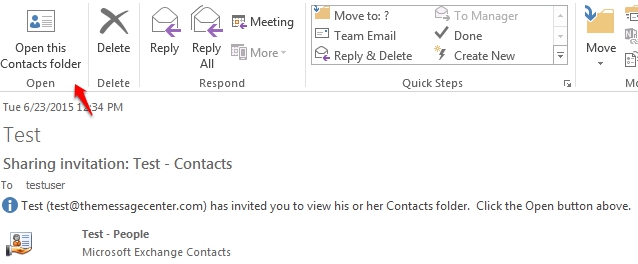
The following article illustrates the steps needed to open a shared contacts folder.
1. Open your Outlook 2013 Client.
2. Click the People button located in the bottom left corner of Outlook.

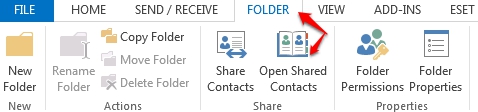
3. Once the ribbon has adjusted to reflect contact options, select the Folder Tab and click the Open Shared Contacts icon.
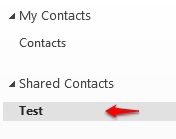
4. Type in the Username or click  to locate the user that has shared their contacts with you.Once their name has been selected, the shared folder will appear within the left-hand panel under Shared Contacts.
Note: When a member of your organization shares a contacts folder, typically a Sharing Invitation message is generated and sent to the user. Selecting Open this Contacts Folder will accept the invitation and place the folder under Share Contacts.