
Similar to having an assistant that helps you manage your incoming E-mail, Calendar Scheduling and Tasks, another person, known as a delegate, can receive and respond to email messages, meeting requests and responses on your behalf. The following article illustrates how to add a delegate, using Outlook 2013, and assign permissions to the new delegate.
1. Open your Outlook 2013 Client.
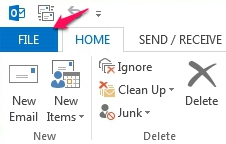
2. In the upper left corner, click on the File tab.
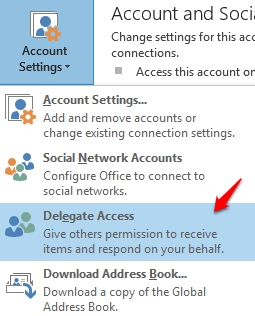
3. Under the Info section, select Account Settings from the down menu and click Delegate Access.
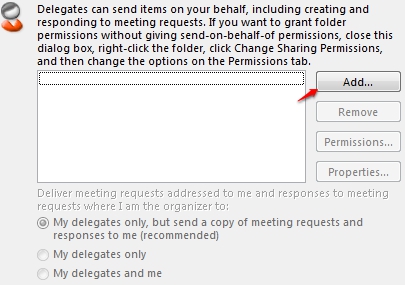
4. The Delegates window will appear. Click the Add Button to add a new delegate.
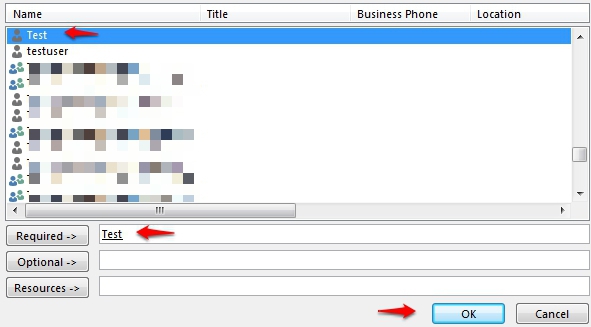
5. Select the desired user from the Global Address list and click OK.
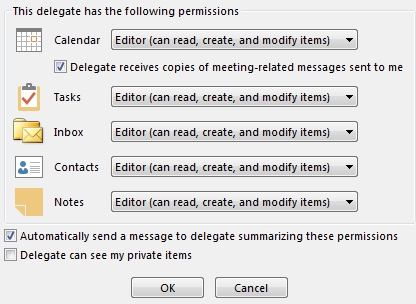
6. Once the user is selected the Delegate Permissions window appear. Delegate permission can be adjusted individually for all Calendars, Tasks, Inbox, Contacts and Notes. Adjust the permission for each delegate's needs and click OK to set the permissions for the new delegate.
What are the delegate permission levels?
-
Reviewer With this permission, the delegate can read items in your folders.
-
Author With this permission, the delegate can read and create items, and change and delete items that he or she creates. For example, a delegate can create task requests and meeting requests directly in your Task or Calendar folder and then send the item on your behalf.
- Editor With this permission, the delegate can do everything that an Author has permission to do and additionally can change and delete the items that you created.
