
How to View Your Distribution List Membership in Outlook Web App 2013

The following article will assist the user in viewing the Distribution Lists to which you are assigned.  Depending on the list settings, you may be able to request addition to, or removal from a list, or view the other members of the list.


1. Log into the Outlook Web App, at https://na02.msexchangeoutlook.com/

2. Click the Options icon in the top-right corner.

3. Select Options, from the gear icon drop-down menu.


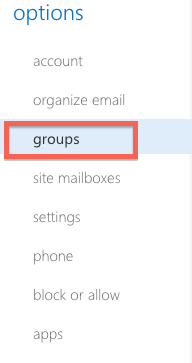
4. Click Groups from the left-hand menu.


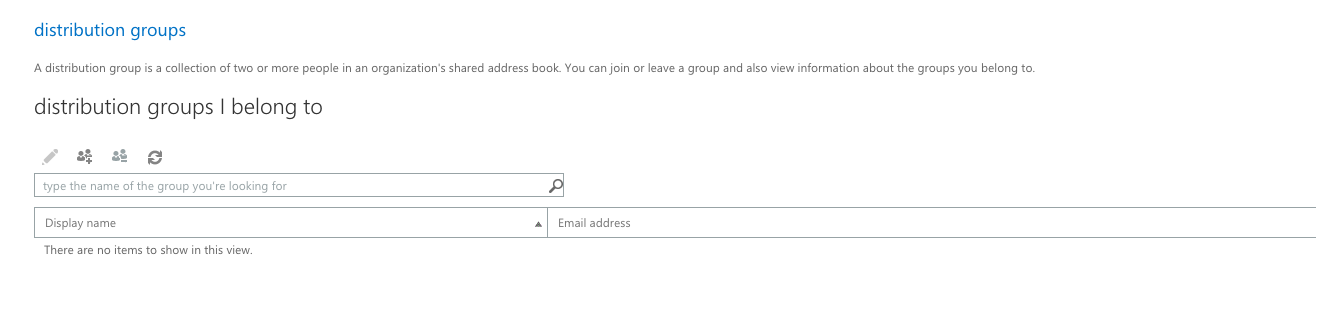
The Distribution Groups I Belong To window will display the lists to which you are assigned.  Double-click on a list to view its details.


  • 2 A felhasználók hasznosnak találták ezt
Hasznosnak találta ezt a választ?

Kapcsolódó cikkek

What’s New In Exchange 2013

Outlook Web App: Offline access   Offline access lets users write messages from their...

Recommended Browser For Outlook Web App 2013

Outlook Web App (OWA) is an excellent way to check your Microsoft Exchange e-mail from a web...

Checking the Mailbox Size In Outlook Web App 2013

If you have a Full Access or a Web Access level mailbox, you are able to check your current...

Managing Mobile Devices In Outlook Web App 2013

The following article will assist the user in accessing information regarding an ActiveSync...

Recovering a Deleted Item in Outlook Web App 2013

The following article will assist you in recovering a deleted item within OWA:      1. Log...
