
Managing "Safe Senders" In Outlook Web App 2013

If you would like to prevent e-mail from a known sender from being moved to the Junk E-mail folder, you may add that sender to the Safe Senders list in Outlook Web App 2010.  Please note that the Junk E-mail folder within OWA and Outlook are different than the Roaring Penguin spam filtering system, and one does not affect the other.  The below article will assist you in adding an address to the Safe Senders list:


1. Log into Outlook Web App at https://na02.msexchangeoutlook.com
2.
 Click the Options icon in the top right corner.
3. Click Options.


4. Select Block or Allow from the left-hand menu.
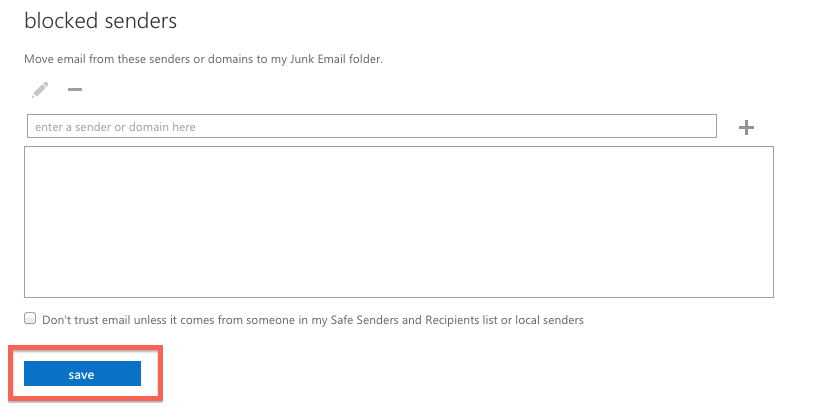
5. In the Safe Senders and Recipients box, enter an e-mail address or domain in the box and click on the plus sign.

6. When finished, click Save.


  • 0 användare blev hjälpta av detta svar
Hjälpte svaret dig?

Relaterade artiklar

What’s New In Exchange 2013

Outlook Web App: Offline access   Offline access lets users write messages from their...

Recommended Browser For Outlook Web App 2013

Outlook Web App (OWA) is an excellent way to check your Microsoft Exchange e-mail from a web...

Checking the Mailbox Size In Outlook Web App 2013

If you have a Full Access or a Web Access level mailbox, you are able to check your current...

Managing Mobile Devices In Outlook Web App 2013

The following article will assist the user in accessing information regarding an ActiveSync...

Recovering a Deleted Item in Outlook Web App 2013

The following article will assist you in recovering a deleted item within OWA:      1. Log...
