
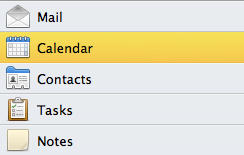
1. At the bottom of the navigation pane, Click the Calendar button.
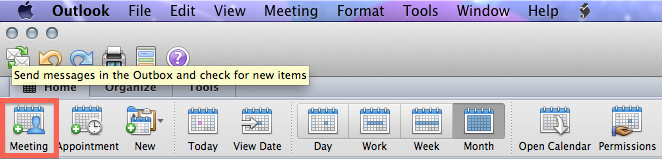
2. On the Home tab, Select Meeting. Note: You can also double-click a time period in the day,week or month view. The date and time of your selection are automatically entered.
3. By Default, the from box will automatically be the meeting creators primary E-mail address. To send the invitation from a different account, Click the small down or up arrows to select your current active E-mail Accounts.
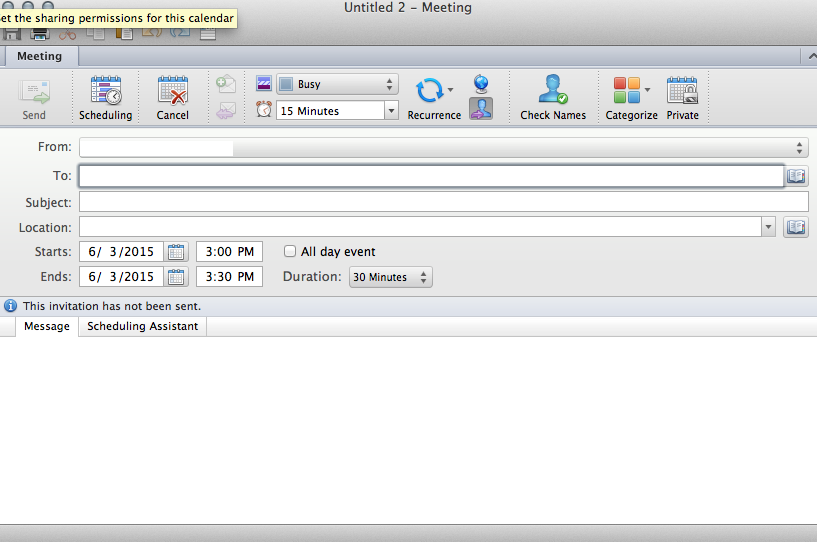
4. In the To Box, enter the names, E-mail address, Distribution Lists, and or resources that are available you wish to include for the meeting.
1: To Display the Time Zone - On the meeting tab click the Time Zone Icon.
2. Add Attachments to the Meeting - On the Meeting Tab, Click Attachments, and then Click Add.
3. Make a Meeting Recurring - On The Meeting tab, Click recurrence, then select the recurrence pattern.
4. To see who is Available for the Meeting - On the Meeting tab, Click Scheduling.
6. When you have completed your meeting invitation, Click Send located on the Meeting Tab.
