
1. Launch Outlook 2011.
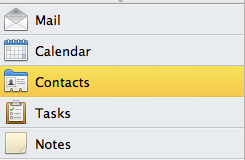
2. Select the Contacts tab.
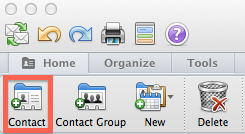
3. Select the 'Contact' button to create a new contact.
4. Fill in the First and Last name , Job Title, Office, Department and Company information by selecting each section individually.

5. Under the General Information, Fill in the Phone number, E-mail Address and mailing address of the contact. Note: Selecting the "+" symbol next to the phone number, internet, address and Personal sections for more options.
6. Select the Save Icon to save your contact.
Note: Selecting the Private icon will hide the contact from your Microsoft Exchange's Global Address List and set it as a personal contact.
