
Creating Contacts Within Outlook 2011

The following article will assist the user in creating Contacts within Outlook 2011. 


1. Launch Outlook 2011.

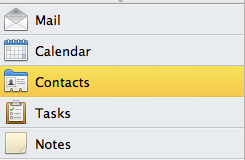
2. Select the Contacts tab.


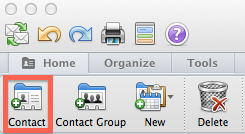
3. Select the 'Contact' button to create a new contact. 


4. Fill in the First and Last name , Job Title, Office, Department and Company information by selecting each section individually. 


5. Under the General Information, Fill in the Phone number, E-mail Address and mailing address of the contact. Note: Selecting the "+" symbol next to the phone number, internet, address and Personal sections for more options.

6. Select the Save Icon to save your contact.


Note: Selecting the Private icon will hide the contact from your Microsoft Exchange's Global Address List and set it as a personal contact.

  • 0 utilizatori au considerat informația utilă
Răspunsul a fost util?

Articole similare

How to Create a Meeting in Outlook 2011

How to Create a Meeting: 1.  At the bottom of the navigation pane, Click the Calendar button....

Adding Holidays To The Outlook 2011 Calendar

The following article will assist the user in adding holidays to the Outlook 2011 calendar....

Creating An Appointment Within Outlook 2011

The following article will assist the user in creating appointments using Outlook 2011 for...

Create, Edit, or Deleting a Task in Outlook 2011

The following article will assist the user in creating, editing or deleting a task.     1....