Exporting your mailbox is a good way to backup your mailbox data and reduce overall mailbox quota. The data exported will be copied from the exchange mailbox and stored in a local folder of your choosing. The following article illustrates how to use Outlook 2013 to export your mailbox contents.
1. Open your Outlook 2013 Client.
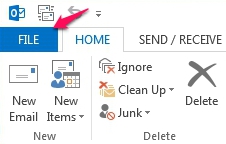
2. In the upper left corner, click on the File tab.
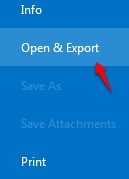
3. Under the Open & Export section, select the Import/Export Button.
|
|
|

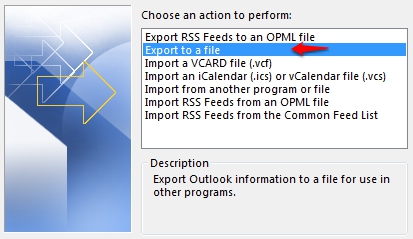
4. This will open the Import and Export Wizard. Click on "Export to a File" and click Next.
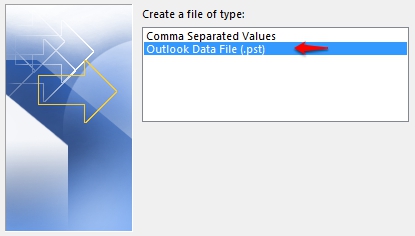
5. Next choose Outlook Data File (.pst) as the file type and click Next.
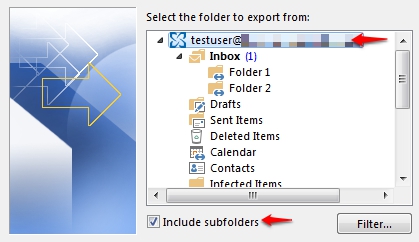
6. You will now need to select folder(s) to be exported. We recommend highlighting the top most folder within the list. This is typically the mailbox or account name. Ensure the check box labeled "Include Subfolders" is selected and click Next.
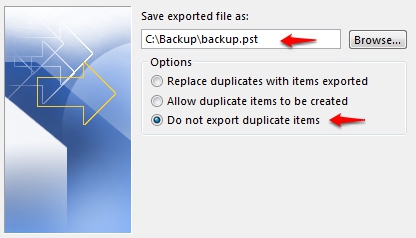
7.Click Browse to select a location to save your export and confirm the option "Do not export duplicate items" is selected. Click Finish to begin the export.