
AutoArchive moves items from their original location in Outlook to an archive file folder when they expire, that is, when they pass the set aging period. You can also set options for items to be deleted when they expire.
The first time that you run Outlook, AutoArchive is turned on by default and runs every 14 days. You can change how often AutoArchive runs, specify the Outlook data file (.pst) used to store archived items, and choose when items in your Outlook folders are subject to being archived.
1. Open your Outlook 2013 Client.

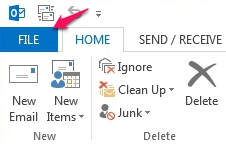
2. In the upper left corner, click on the File tab.
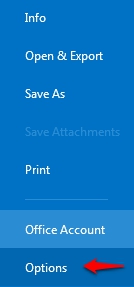
3. From within the left panel Choose Options to open the Options Panel.
4. Under Advanced options, locate the AutoArchive option group and click the
 Button.

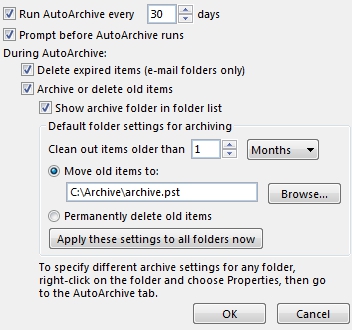
5. Configure your settings and click OK.
Notes
-
If you change the archive file listed under Move old items to, this new file will be used each time that AutoArchive runs.
-
Set the default folder options first, and then customize individual folder settings. Otherwise, you may unintentionally change the default settings.
-
For more information about AutoArchive settings, see AutoArchive settings explained.
