
Canceling a Meeting in Outlook 2013

The following article illustrates steps needed to cancel a Meeting or Recurring Meeting using Outlook 2013.


1.
Open your Outlook 2013 Client.


2. Click the Calendar button located in the bottom left corner of Outlook.



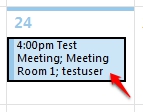
3. Locate the meeting you wish to cancel and double-click the entree to open it.


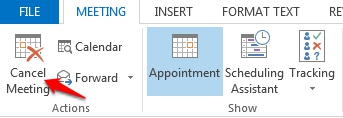
4. Within the Meeting tab, click Cancel Meeting. A cancellation message will go out to all tagged attendees and optional attendees.



  • 0 Uživatelům pomohlo
Byla tato odpověď nápomocná?

Související články

How to Download the Offline Address Book

  The following article contains the preferred instructions on how to download your Global...

Scheduling A Meeting

Scheduling a meeting is a great way to keep your team up to date on business events. Outlook...

Creating a Meeting on Behalf of Another User.

The following article illustrates how a delegate can create a meeting event on behalf of another...

Changing The Default Address List used by Outlook 2013

When you use Outlook 2013, with an Exchange account, the default address list is set to the...

Making Appointments/Meetings Private

  This article will assist you on how to make a meeting or an appointment private. Note: Making...