
Adding a Signature in Outlook Web App 2013

The following article will assist the user in adding an e-mail signature using the new Outlook Web App for Exchange 2013.


1. Log into the Outlook Web App at https://na02.msexchangeoutlook.com/

2. In the upper right hand corner, click the Options icon.

3. Once the menu appears, select Options.


OWA 2013 Options.png

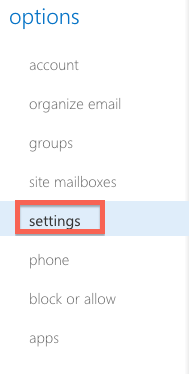
4. Along the left side, click Settings.


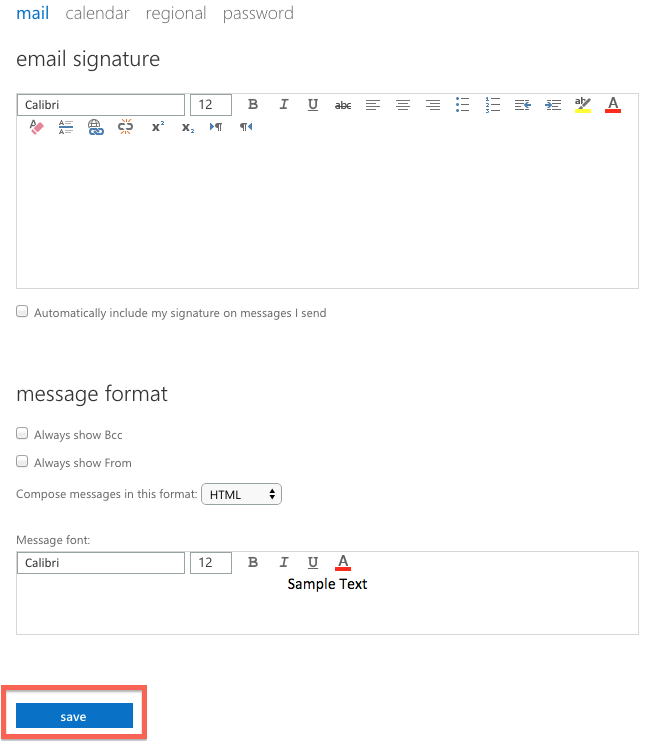
5. The Mail setting is the default tab. Here is where you can start constructing your e-mail signature. The e-mail signature is in the standard What You See Is What You Get Format (WYSIWYG).


6.  Once you have completed the creation of your signature, select the small box entitled"Automatically include my signature on messages I send".  This will place your signature on every messages sent form your OWA.

7. Click the Save button.


  • 3 Utilisateurs l'ont trouvée utile
Cette réponse était-elle pertinente?

Articles connexes

What’s New In Exchange 2013

Outlook Web App: Offline access   Offline access lets users write messages from their...

Recommended Browser For Outlook Web App 2013

Outlook Web App (OWA) is an excellent way to check your Microsoft Exchange e-mail from a web...

Checking the Mailbox Size In Outlook Web App 2013

If you have a Full Access or a Web Access level mailbox, you are able to check your current...

Managing Mobile Devices In Outlook Web App 2013

The following article will assist the user in accessing information regarding an ActiveSync...

Recovering a Deleted Item in Outlook Web App 2013

The following article will assist you in recovering a deleted item within OWA:      1. Log...
