
Deleting an Entry From the AutoComplete Cache

This article will assist the user on how to remove an item from the AutoComplete Cache in Outlook Web App. This is commonly done when a cached email address returns a non delivery response (bounce back) when the email address appears to be correct.


Delete an entry from the list using OWA


1.  Log into your mailbox via Outlook Web App at https://na02.msexchangeoutlook.com

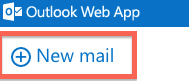
2.  Create a new email or meeting request.


3.  Begin typing the entry you want to delete until you see it in the Auto Complete list.
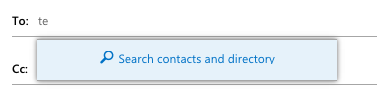


4.  To remove one entry from the list, highlight the name in the Auto Complete list, arrow up and arrow down allow you to highlight the name you want to remove.


5.  When the entry is highlighted, press the Delete button on your keyboard.

  • 0 A felhasználók hasznosnak találták ezt
Hasznosnak találta ezt a választ?

Kapcsolódó cikkek

What’s New In Exchange 2013

Outlook Web App: Offline access   Offline access lets users write messages from their...

Recommended Browser For Outlook Web App 2013

Outlook Web App (OWA) is an excellent way to check your Microsoft Exchange e-mail from a web...

Checking the Mailbox Size In Outlook Web App 2013

If you have a Full Access or a Web Access level mailbox, you are able to check your current...

Managing Mobile Devices In Outlook Web App 2013

The following article will assist the user in accessing information regarding an ActiveSync...

Recovering a Deleted Item in Outlook Web App 2013

The following article will assist you in recovering a deleted item within OWA:      1. Log...