
Zimbra Activesync Configuration For iPhone


This article will assist the user in configuring an iPhone with your Zimbra mailbox. 

IMPORTANT: Back up any Contacts for Calendars before configuring the account as all prior local calendars and contacts will be overridden.


1. On the iPhone select the Settings > Mail, Contacts, and Calendars 
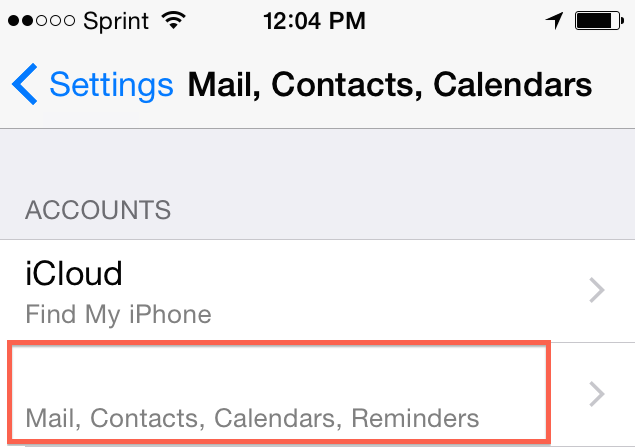
 

Exchange Account.PNG


2. Configure with the settings below.


Email: Your email address

Domain: *Leave blank

Username: Your email address

Password: Zimbra password


3. Select Next


4. You will receive an error message stating "Unable to Verify Certificate," Simply select Accept and go to the next screen.


5. For the Server field put in mail.zimbraservice.com and then select Next. 


6. From here you are able to select the services you would like synced from the Zimbra mailbox. 

Note: Back up 'any' Contacts or Calendars
 before configuring the account as all prior local Contacts and Calendars will be overridden.

  • 0 用戶發現這個有用
這篇文章有幫助嗎?

相關文章

Known Issue With iOS6 Devices Canceling Meetings

  A known issue has been reported that the new iOS6 device, while working with exchange....

iPhone and IPad Configuration For Hosted Exchange 2010

  The iPhone 4.0 + and iPad 2 uses Microsoft Exchange ActiveSync, to push your Mail, Contacts,...

iPhone and IPad Configuration For Hosted Exchange 2013

  The iPhone and iPad uses Microsoft Exchange ActiveSync, to push your Mail, Contacts, and...

Exchange 2013 IMAP Settings For iPhone/iPad

  The following article will assist users in setting up an IMAP account using Exchange 2013....

Changing The Default Mail Settings

  1. On the iPhone, Open Settings app.   2. Select Mail, Contacts, Calendars....