
Enabling E-mail Archiving Powered by Roaring Penguin

The following article illustrates how you can enable the E-mail archiving service that is provided by Roaring Penguin.


1.
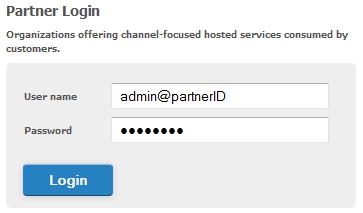
Navigate to https://my.securembox.com and access the Partner Control Panel by logging in with your administrative credentials.

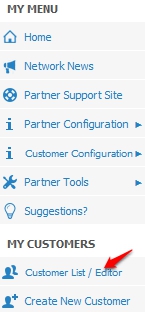
2. Within the partner Account panel and under the My Customer section, click on Customer List / Editor.


3. Highlight the customer account, you wish to add Lync Service to, and choose Edit Customer.



4. The edit customer panel will now populate. Select the Microsoft Exchange tab. Under Exchange Settings, select Archiving - RP and Enable Mail Archiving by placing he slider in the On position.
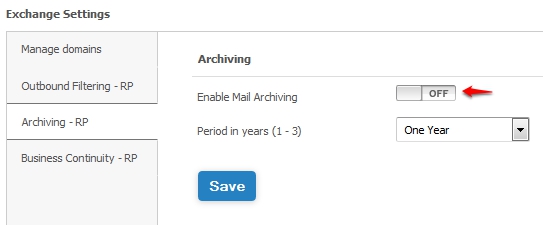


5. Before saving your selection, we recommend confirming the archiving retention time for your customer. You can make your selection in years from 1-3.

 

  • 0 Bu dökümanı faydalı bulan kullanıcılar:
Bu cevap yeterince yardımcı oldu mu?

İlgili diğer dökümanlar

Logo Configuration

The following article will show you how to add a customized logo to your Control Panel. This type...

View and Edit Customer Account Details

This article will show you how to update your customer account details from within your partner...

Log into a Customer's Control Panel

This article outlines how to log into your Customer's Control Panel from within your Partner...

Suspend a Customer Account

This article explains how to suspend a customer account via the Partner Control Panel....

Search for an Existing Customer

This article outlines the different ways you can search for an existing customer in the Partner...