
Microsoft Exchange - Configuring a New Customer with Lync Service

 The following article contains steps on how to add Lync service, to a Microsoft Exchange 2013 customer account, using the upcoming control panel.


1.
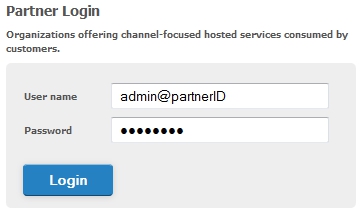
Navigate to https://my.securembox.com and access the Partner Control Panel by logging in with your administrative credentials.


2.
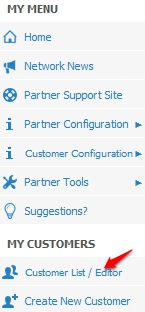
 Within the partner Account panel and under the My Customer section, click on Customer List / Editor.

3. Highlight the customer account, you wish to add Lync Service to, and choose Edit Customer.


Note: The Microsoft Lync Service is only available for customer accounts utilizing the Microsoft Exchange 2013 service and will net be displayed for any other platform.


4.
The edit customer panel will now populate. Select the Microsoft Lync tab and enable the service by sliding the Microsoft Lync slider to the on position.



5. Once the service is enabled, your customer will require a Lync client to use the service. Below are Microsoft's direct links to the Lync Basic application.


Lync Basic 32 bit

Lync basic 64bit
  • 0 gebruikers vonden dit artikel nuttig
Was dit antwoord nuttig?

Gerelateerde artikelen

How to Configure a New Customer with Microsoft Exchange Service

The following instructions are on how to configure a new customer account to the Microsoft...

Microsoft Exchange - Adding a Domain Alias to a Customer Account

The following article contains steps on how to add a Domain Alias, to a customer account, using...

How to Configure a New Customer with Microsoft SharePoint Service

The following instructions are on how to configure a new customer account with the Microsoft...

How to Configure a New Customer with Microsoft Dynamics CRM Service

The following instructions are on how to configure a new customer account with the Microsoft...

How to Configure a New Customer with the Cloud Backup Service

The following instructions are on how to configure a new customer account with the stand-alone...