
Exchange 2013 IMAP Settings For iPhone/iPad


The following article will assist users in setting up an IMAP account using Exchange 2013. 


1.  Navigate to the 
Settings app.

2.  Go to Mail, Contacts, Calendars.
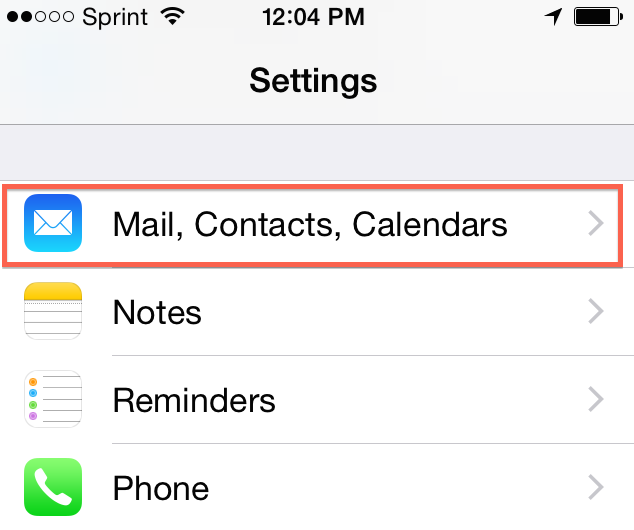
 

Mail Contacts and Calendars.PNG


3.  Tap on Add Account.

4.  Tap on Other.

5.  Tap on Add Mail Account

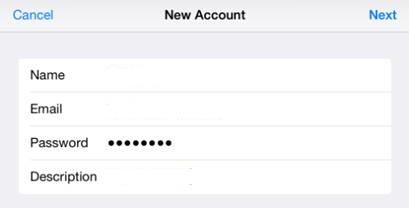
6.  In these settings type in the user’s name, full email address, password, and a description for the account, then tap Next.


7. In the INCOMING MAIL SERVER and OUTGOING MAIL SERVER sections, enter in the following configuration:


·         Host Name: na02.msexchangeoutlook.com

·         User Name: The user’s full email address

·         Password: The user’s account password


8.       Tap Next


The IMAP account is now ready to use.

  • 0 Bu dökümanı faydalı bulan kullanıcılar:
Bu cevap yeterince yardımcı oldu mu?

İlgili diğer dökümanlar

Removing Your Hosted Exchange Account From An iPhone

  The following guidelines will assist you in removing your Hosted Exchange account from an...

Changing The Default Mail Settings

  1. On the iPhone, Open Settings app.   2. Select Mail, Contacts, Calendars....

Zimbra Activesync Configuration For iPhone

  This article will assist the user in configuring an iPhone with your Zimbra mailbox....

iPhone and iPad Configuration For Hosted Exchange 2013

  The iPhone and iPad uses Microsoft Exchange ActiveSync, to push your Mail, Contacts, and...

iPhone and IPad Configuration For Hosted Exchange 2010

  The iPhone 4.0 + and iPad 2 uses Microsoft Exchange ActiveSync, to push your Mail, Contacts,...
