
Responding to a Mesasge with a Meeting Request


When you receive a message, task request, or calendar invitation, you are able to respond with a meeting request. The meeting request invites everyone, tagged in the original message's recipients list, as Required Attendees. Additional recipients located in the Cc line, by default, as Optional Attendees.


1.
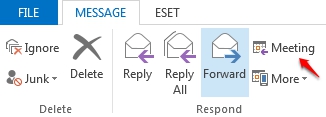
Open the message you wish to respond to. From within the Respond group click the Meeting Button.


2. Complete the response by adding in the Location, Start/End times, add or remove attendees, attachment or use the Scheduling Assistant to find the best meeting times. 
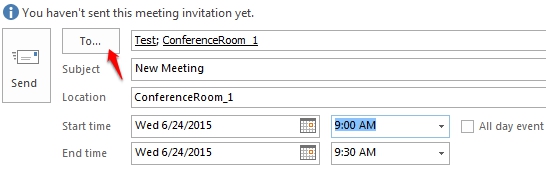


3. Click on the Send button when finished

  • 0 Kunder som kunne bruge dette svar
Hjalp dette svar dig?

Relaterede artikler

How to Download the Offline Address Book

  The following article contains the preferred instructions on how to download your Global...

Scheduling A Meeting

Scheduling a meeting is a great way to keep your team up to date on business events. Outlook...

Creating a Meeting on Behalf of Another User.

The following article illustrates how a delegate can create a meeting event on behalf of another...

Changing The Default Address List used by Outlook 2013

When you use Outlook 2013, with an Exchange account, the default address list is set to the...

Making Appointments/Meetings Private

  This article will assist you on how to make a meeting or an appointment private. Note: Making...