
This article will assist you on how to make a meeting or an appointment private.
Note: Making an Appointment or Meeting "private" will ensure even users with Delegate rights will not be able to view the event details.
1. Open your Outlook 2013 Client.
2. Click the Calendar button located in the bottom left corner of Outlook.

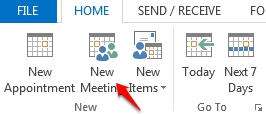
3. Create or Open an Appointment/Meeting that you would like to mark as private.
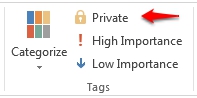
4. Within the ribbon, locate the Tags group and click the Private Button.
The private feature will not function correctly when applied to a single occurrence of a reoccurring appointment/meeting. The entire series will need to be marked as private. Additionally, users that have been provided Delegate permission can be set to view private items. This feature will need to be disabled within the delegate permissions list.
