
Changing The Default Address List used by Outlook 2013

When you use Outlook 2013, with an Exchange account, the default address list is set to the Global Address List. The following article illustrates on how to change the default list.


1.
Open your Outlook 2013 Client.


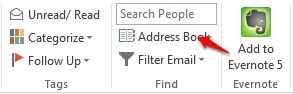
2. From within the Ribbon, locate the Find grouping, click the Address Book Button.


3. When the Address List window appears, click Tools then Options.


4. The Addressing settings are defaulted to the Global Address List. To choose a different primary list, when sending an e-mail message, select the radial button that fits the Address Book type or add a custom one. To change the default Address Book when opening the Address Book directly, select the desired Address Book from the drop down menu labeled "When opening the address book, show this address first:"
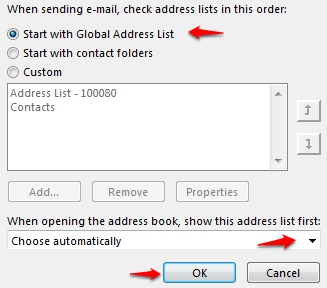



5. Click OK to save your changes.
  • 0 Los usuarios encontraron esto útil
¿Le ha resultado útil esta respuesta?

Artículos relacionados

How to Download the Offline Address Book

  The following article contains the preferred instructions on how to download your Global...

Scheduling A Meeting

Scheduling a meeting is a great way to keep your team up to date on business events. Outlook...

Creating a Meeting on Behalf of Another User.

The following article illustrates how a delegate can create a meeting event on behalf of another...

Making Appointments/Meetings Private

  This article will assist you on how to make a meeting or an appointment private. Note: Making...

Responding to a Mesasge with a Meeting Request

  When you receive a message, task request, or calendar invitation, you are able to respond with...