
The following article contains the preferred instructions on how to download your Global Address List directly to your local computer. This copy is know as the Offline Address Book. The AutoDiscover CNAME is required for Outlook 2013 to make the necessary connection to retrieve the Offline Address Book.
If you do not have the AutoDiscover CNAME configured for domain, please review our settings Here.
1. Open your Outlook 2013 Client.
2. A the top of the ribbon click the Send/Receive tab.
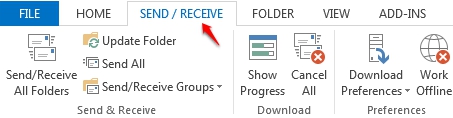
3. Within the Ribbon, click the small drop down menu for Send/Receive Groups and choose Download Address Book.

4. A new window will appear. Within the Offline Address Book window, confirm the check-box Download changes since last Send/Receive is enabled. By default, your organization's Global Address List is selected. Choose the Offline Address Book you wish to Download and click OK.