Printing an Outlook 2013 Message


It is possible to print a received E-mail message directly from Outlook. The following article illustrated how to print a message.


1.
Open your Outlook 2013 Client.


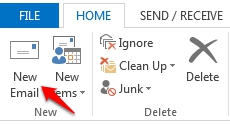
2. Open an existing E-mail message or create a new message by clicking on New Email.


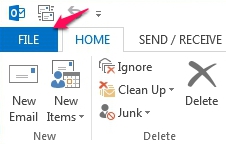
3. Click on the File tab.


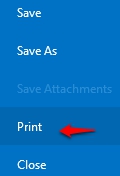
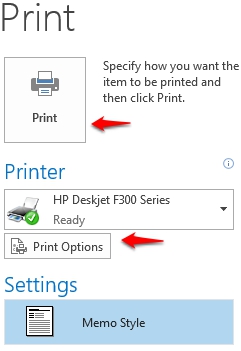
4. From within the panel on the left, select print to reveal additional printing options such us Available Printers and Printer Options. All chosen settings will be displayed in the Settings section and remain available until the next print process.


5. Click Print to begin printing out the message.

  • 0 Bu dökümanı faydalı bulan kullanıcılar:
Bu cevap yeterince yardımcı oldu mu?

İlgili diğer dökümanlar

Outlook 2013 System Requirements

  The following are the minimum system requirements for Outlook 2013. Processor 1...

Outlook 2013 Command Line Switches

  Outlook Command Line Switches may be used to clear errors within Outlook caused by...

The Difference Between 32-bit And 64-bit Versions Of Outlook 2013

  What are the differences between the 32-bit and 64-bit versions of Microsoft Office Outlook...

What's New in Microsoft Outlook 2013

  Would you like to view some of the features included with the newly released version of...

Microsoft Exchange 2013 NDR - Non-Delivery Reports

  Are you receiving a Bounce back (NDR - Non-Delivery Report) when sending an email message? We...