
A personalized signature can be created to add to all messages sent from Outlook 2013. Each signature can compose of text, images, an electronic business card, a logo, or even an image of your handwritten signature. A signature can be set to be added automatically to all outgoing messages, or you can choose which messages include a personalized signature.
1. Open your Outlook 2013 Client.

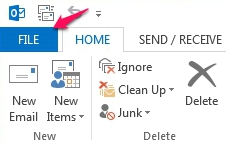
2. Click on the File tab.
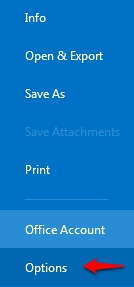
3. From within the left panel Choose Options to open the Options Panel.
4. Under Mail options, locate the Compose Messages option group and select the  button to create or modify signatures.

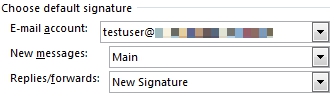
5. Each Outlook account, you have configured, can have a personalized signature. Each configured signature can be set as default for all New Messages and or Replies/forwards.
|
|
|
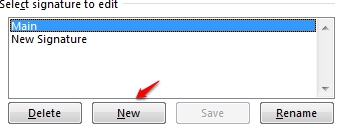
6. Each signature can compose of text, images, an electronic business card, a logo, or even an image of your handwritten signature. Compose your signature and click OK.
