
The following article contains illustrated instructions on how ot enable Outlook 2013 to correct spelling and grammer when sending E-mail.
1. Open your Outlook 2013 Client.

2. Click on the File tab.

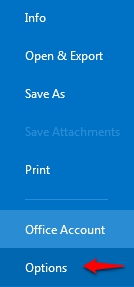
3. From within the left panel Choose Options to open the Options Panel.
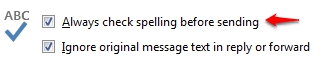
4. Under Mail options, locate the Compose Messages option group and confirm the option Always check spelling before ending is enabled.
5. To adjust grammar settings, click the  button for more options. Under the Proofing section are additional settings under When correcting spelling in Outlook. To enable grammar errors, select Mark grammar with spelling and Check grammar with spelling.
Please Note: the grammar checking feature is a part of the office suit collection integration and requires the same version of Microsoft Word or Office packages.
