
A rule is an action that the Outlook 2013 client takes automatically upon the arrival or sent message that meets the specified conditions configured within the rule. You can choose many conditions and actions by using the Rules and Alerts Wizard.
1. Open your Outlook 2013 Client.
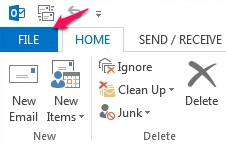
2. Click on the File tab.
3. Under Info, you will find the Rules and Alerts features. Click the Manage Rules & Alerts button.

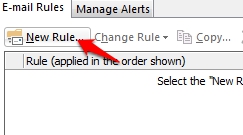
4. The Rules and Alerts window will appear. Click New Rule.
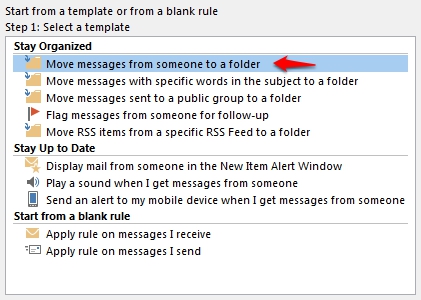
5. When the Rules Wizard window opens you now have the ability to create a rule based on a template or a new blank rule can be created. It is recommended to use a template that best suits your needs.
Under Step 1: Select a template, select the template that you want from the Stay Organized or Stay Up to Date collection of templates. For our Example we used the Move message from someone to a folder template located under Stay Organized.
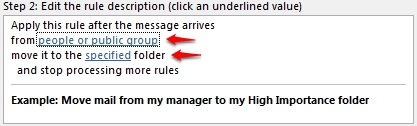
Under Step 2: Edit the rule description, click an underlined value. For example, if you click the from people or public group link, your current Address Book opens. Additionally when selecting move it to the 'specified' folder. The folder list will appear.
6. Click Finish to create your rule.
