The following article contains illustrated instructions on how to configured Automatic replies using an Outlook 2013 program.
Please Note: Configuring Automatic Replies requires the AutoDiscover CNAME record to be configured with your DNS provider. Please click Here for our AutoDiscover settings.
1. Open your Outlook 2013 Client.
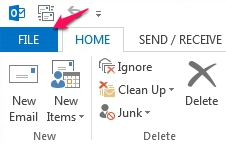
2. In the upper left corner, click on the File tab.
3. Under the Info section, select Automatic Replies (Out of Office).

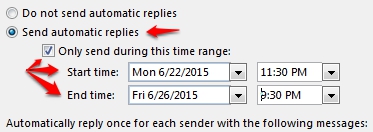
4. The "Automatic Replies" window will appear. To enable automatic replies you must select Send automatic replies. Additionally, you can set the Date/Time you will be Out of Office.
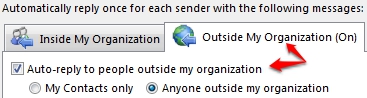
5. Compose the message that will be received when a message arrives. When complete, it is possible for external contacts to receive a reply as well, select the Outside My Organization (On) tab and choose Auto-reply to people outside my organization.