
Viewing the Mailbox Size in Outlook 2013


Outlook 2013 has the ability to track the total amount of quota used and available free space of your mailbox. The following article illustrates how to view your total mailbox size and available space.


1.
Open your Outlook 2013 Client.


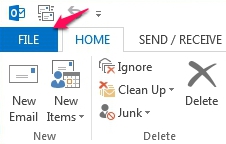
2. In the upper left corner, click on the File tab.


3. Under Info, you will find Mailbox Cleanup and your total quota usage along with available space.



Please Note: The actual mailbox size is not shown. The total size represents the point when size-limit warnings are issued.

  • 0 משתמשים שמצאו מאמר זה מועיל
?האם התשובה שקיבלתם הייתה מועילה

מאמרים קשורים

Outlook 2013 System Requirements

  The following are the minimum system requirements for Outlook 2013. Processor 1...

Outlook 2013 Command Line Switches

  Outlook Command Line Switches may be used to clear errors within Outlook caused by...

The Difference Between 32-bit And 64-bit Versions Of Outlook 2013

  What are the differences between the 32-bit and 64-bit versions of Microsoft Office Outlook...

What's New in Microsoft Outlook 2013

  Would you like to view some of the features included with the newly released version of...

Microsoft Exchange 2013 NDR - Non-Delivery Reports

  Are you receiving a Bounce back (NDR - Non-Delivery Report) when sending an email message? We...