
Outlook 2013 has the capability to capture an image and paste that image into the body of a new email message. This can be useful for documenting Outlook behavior as well as improve technical support.
1. Open your Outlook 2013 Client.
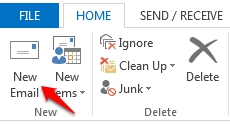
2. In Outlook, create a new Email by pressing the New Email button.
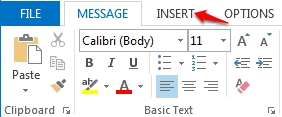
3. Fill out the E-mail message, as needed, select the location within the body the screen-shot will be placed and choose the Insert tab.
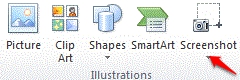
4. On the Insert tab, within the Illustrations group, click Screenshot.
5. The Screen-shot Window will appear. Perform any of the following that best fits your needs.
-
To add the whole screen, click the thumbnail in the Available Windows gallery.
-
To add part of the screen, click Screen Clipping, and when the pointer becomes a cross, press and hold the left mouse button to select the area of your screen that you want to capture.
If you have multiple windows open, click the window you want to clip from before clicking Screen Clipping. When you click Screen Clipping, the program you are working in is minimized and only the window behind it is available for clipping.
