
How to Check For Outlook 2011 Updates

Some performance issues can occur if your Outlook client is not up to date. The Microsoft AutoUpdate for Mac will allow you to automatically search for Updates as they are made available. The following steps will enable the AutoUpdate to delivery any updates directly to your computer.


1.  Within the Help menu, click Check for Updates.


2. Under "How would you like to check for software updates?" , Select Automatically.
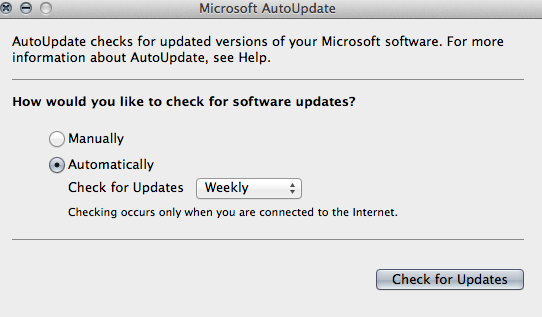


3. Within the Check for Updates pop-up menu, Select the frequency that you want AutoUpdate to use to check for new updates.

Note: If you do not require AutoUpdate to appear automatically when new updates are available, you can select Manually when asked How would you like to check for software updates?

  • 0 Users Found This Useful
Was this answer helpful?

Related Articles

What's New For Outlook 2011

Wondering what's new in Outlook 2011 for the Mac. Provided is direct link to the Microsoft web...

System Requirements For Outlook 2011

Below are the system requirements for Outlook 2011 for Macintosh:   A Mac computer with an...

How To Switch Identities in Outlook for Mac 2011

If multiple Identities are configured within Outlook 2011, the follow article will instruct you...

Accessing the GAL within Outlook 2011

To access the Global Address List within Outlook 2011, choose one of the following options: 1....

How to View Mailbox Quota in Outlook 2011

This article illustrates how to view your total mailbox size and free/available space within your...