
In Microsoft Outlook, images can be added to a contact form that will help you put a face to a name or quickly match a logo to a company contact. Adding a picture to a message requires a version matching Microsoft Office Suite of 2007 or later.
Note: All images added to a contact form, are automatically sized to 90 pixels by 90 pixels. Contact photos can be in most standard graphics file formats, including .jpg, .png, .gif, .bmp, or .tif.
Add a picture
1. Open your Outlook 2013 Client.
2. Click the People button located in the bottom left corner of Outlook.

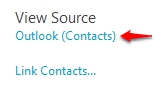
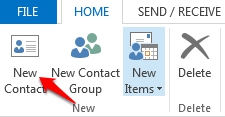
3. Select the contact you wish to add a picture to and click the Outlook (Contacts) link under View Source Or Click on New Contact to create a new entree.
|
|
|
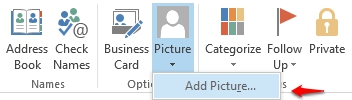
4. With the Contact Tab, under the Options grouping, click Picture, Add Picture. Alternately, you can double-click the empty contact portrait.
5. Browse to the location of the desired picture and then double-click the file name to select it.
Remove a picture
1. In Contacts, highlight the contact you wish to remove the picture form.
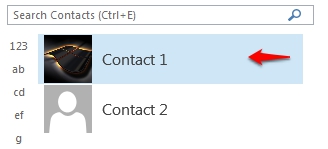
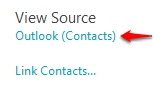
2. Within the Contact view, click the Outlook (Contacts) link under View Source to open the original contact.

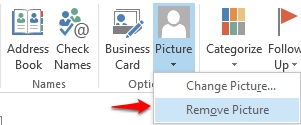
3. Located in the Contact Tab, under the Options grouping, click Picture, Remove Picture.
Change a picture
1. In Contacts, highlight the contact that you want to change the picture of.
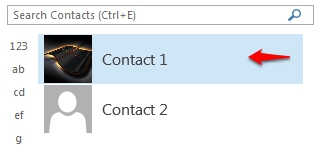
2. Within the Contact view, click the Outlook (Contacts) link under View Source to open the original contact.
3. Located in the Contact Tab, under the Options grouping, click Picture, Change Picture.
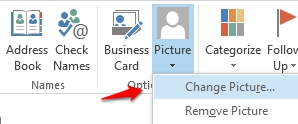
4. Browse to the location of the desired picture and then double-click the file name to change the picture.
